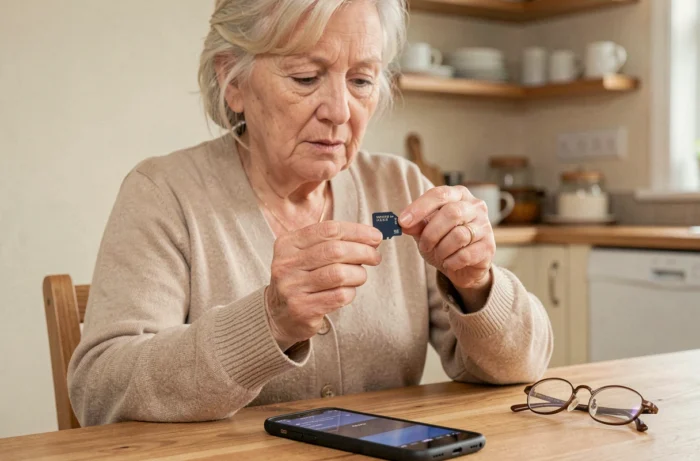
Doro phones accept a microSD card, but simply inserting it is not enough to seamlessly expand storage. Depending on the model and the version of Android installed, the card will only be recognized as external storage for photos and videos, with no option to move applications to it. This distinction, rarely highlighted in quick guides, changes the way added memory is actually utilized.
Adoptable storage missing on recent Doro models: what this means in practice
On older versions of Android (6 to 11), some manufacturers allowed adoptable storage. This mode merged the SD card with internal memory, allowing applications to be installed as if they were on the phone itself. Recent Doro models running Android no longer offer this option.
The microSD card is treated as portable external storage only. In practice, this means it can hold photos, videos, and downloaded files, but not the system or updates. Applications remain on the phone’s internal memory.
For use focused on photography or document backup, this limitation is not a problem. However, if the internal memory of the Doro is full of applications, adding an SD card will not free up space for new installations. A detailed procedure covering compatibility across different models is documented by gestea-senior assistance on Espace Senior, which specifies the maximum capacities accepted according to the devices.
MicroSD card and Doro phone: choosing the right format before insertion
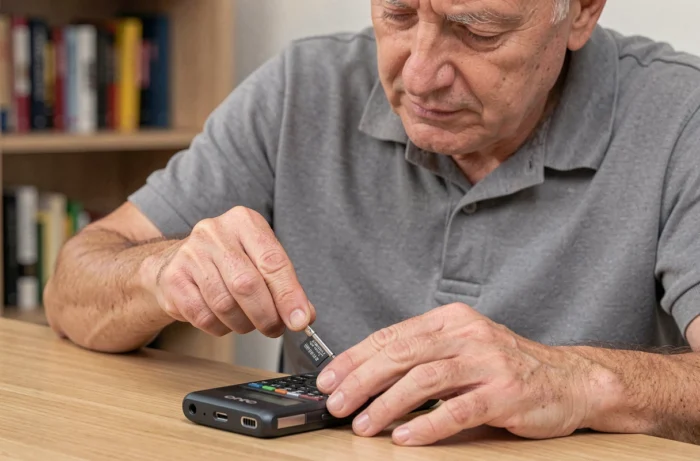
The choice of card determines the proper functioning of the extended memory. Doro flip phones (like the 6530) and smartphones (like the 8050) do not accept the same capacities. Inserting a card that is too large or of an unsuitable class can lead to a complete failure to detect it.
- The required physical format is microSD (the smallest). Standard SD or miniSD cards do not fit into the slots of Doro phones.
- The maximum capacity varies by model. The Doro 8050 supports cards up to 128 GB, while older models sometimes cap well below that.
- The speed class (Class 10 or UHS-I) affects the smoothness of photo and video playback. A card that is too slow can cause lag when viewing stored files.
- The expected file system is generally FAT32 or exFAT. A card formatted in NTFS (a common format on PCs) will not be recognized by the phone.
Before purchasing, consulting the manual for the specific Doro model remains the most reliable method to check the maximum supported capacity.
Procedure for inserting the SD card into a Doro phone
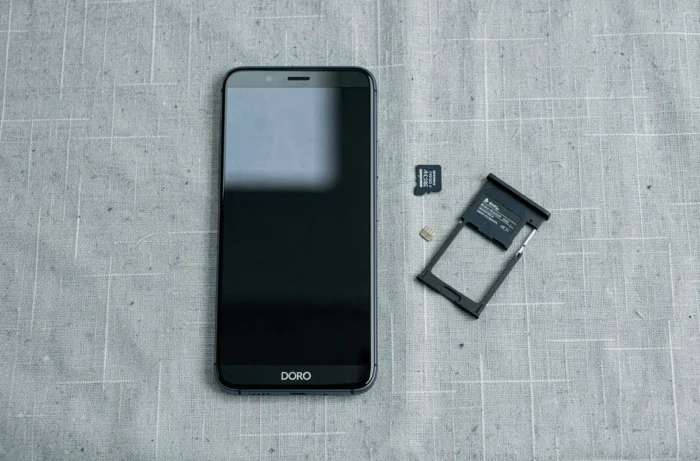
The physical handling differs depending on whether it is a Doro flip phone or a Doro smartphone. On flip models, the compartment is located under the battery. On smartphones, a side drawer accessible with an ejector (or a paperclip) houses the SIM card and the microSD card.
Doro flip phones
Turn off the phone. Remove the back cover by sliding it off, then lift out the battery. The microSD slot is identifiable by a metal notch next to the SIM slot. Slide the card in with the gold contacts facing down, in the direction indicated by the engraved pictogram. Replace the battery, close the cover, and turn it back on.
Doro smartphones running Android
Turn off the device. Insert the tip of the ejector into the small hole located on the edge of the phone. The drawer will pop out with the SIM and microSD slots side by side. Place the microSD card in the dedicated slot (the smaller of the two), contacts facing down. Push the drawer back in until it clicks, then turn it back on.
Never insert or remove the SD card while the phone is on: this can corrupt already saved files and damage the file system of the card.
Setting up the SD card after insertion on a Doro Android
Upon restarting, the phone displays a notification indicating the detection of the card. If no notification appears, open Settings, then Storage. The card should appear in the list of available media.
If the Doro prompts to format the card, accept the operation. The formatting to FAT32 or exFAT will be done automatically. This step erases all data on the card: back up files before formatting.
Once the card is recognized, configure the camera to save directly to the SD card. The option is found in the settings of the Camera app, under Storage location. Without this change, photos will continue to accumulate in internal memory.
Manually moving existing files
The file manager built into Android allows copying or moving files from internal memory to the SD card. Open the manager, select the relevant folders (DCIM for photos, Download for downloads), then use the Move to SD card option.
This operation frees up space on internal memory without needing a computer. Field reports vary on this point: some Doro models display the move option very visibly, while others hide it in a sub-menu accessible only via the three dots in the top right corner of the screen.
SD card not detected on a Doro: diagnostic leads
A detection issue after correct insertion can have several causes. Before concluding a hardware defect, check these points in order:
- The card exceeds the maximum capacity supported by the model. A 256 GB card in a Doro that caps at 128 GB will not be read.
- The file system is incompatible. Format the card to FAT32 from a computer, then reinsert it.
- The contacts of the card or the slot are dirty. A blast of dry air on the connector sometimes resolves the issue.
- The card is defective. Testing it in another device (phone, camera, USB reader) can help determine the issue.
If the card works elsewhere but remains invisible on the Doro, a complete restart of the phone (turning it off and then back on) sometimes triggers a new mounting attempt. As a last resort, resetting network and storage settings may force the slot to be re-read.
The microSD card remains the most direct way to add space to a Doro phone, provided the model’s capacity limits are respected and the camera is set up to store pictures directly on it. The main gain in space comes from photos and videos, not from applications, which remain confined to internal memory on recent versions of Android.