The Freebox Pop runs on Android TV, an environment that provides access to the Google ecosystem, from the Voice Assistant to the Play Store. The initial setup seems simple on the surface, but several elements deserve special attention, particularly the ongoing transition between Google Assistant and Gemini on mobile devices, and the recent reorganization of Free TV channels that may disrupt voice commands.
Google Assistant on Freebox Pop: What Changes with the Arrival of Gemini
A point rarely addressed in existing guides concerns the coexistence of two Google voice assistants. Since August 2026, Google has been accelerating the replacement of its classic Assistant with Gemini on Android smartphones, with a definitive switch planned for September.
This transition does not yet affect the Freebox Pop player itself. The TV box retains Google Assistant in its classic version. However, if you use an Android smartphone to control your Freebox via the Google Home app, the interface and voice settings on your phone will evolve.
Specifically, commands issued from the Freebox Pop remote (via the microphone button) will continue to work as before. Commands issued from a smartphone equipped with Gemini may present different screens and responses. For those who want to set up Google on Freebox Pop under the best conditions, it is better to clearly distinguish these two environments from the start.
Google Account and Google Home App: Often Overlooked Prerequisites
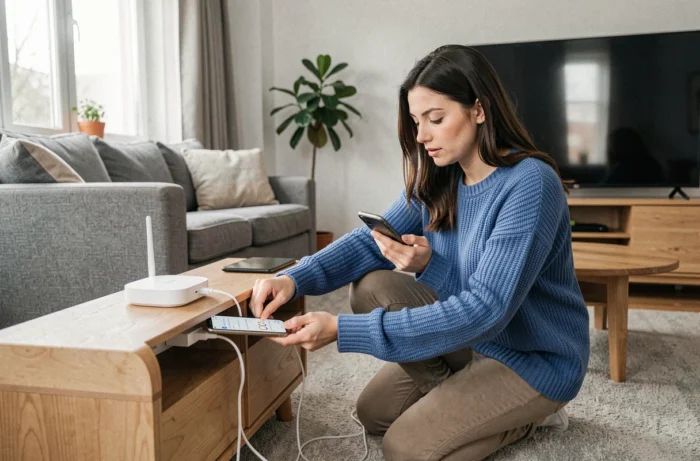
Before any manipulation on the player, two elements must be in place: a functional Google account and the Google Home app installed on your smartphone or tablet.
Check the Status of Your Google Account
Some accounts may be temporarily blocked by Google during creation or after a period of inactivity, with a message like “suspicious activity detected.” If your account shows this type of block, the player setup will fail without a clear error message from Freebox.
Before starting, log into your Google account from a web browser to verify that it is active and accessible. This precaution helps avoid wasting time in front of a configuration screen that loops endlessly.
Link Freebox Pop in Google Home
The Google Home app serves as a bridge between your home network and voice features. The Freebox Pop player appears as a compatible device in the app, provided that the smartphone and player are connected to the same Wi-Fi network.
- Open Google Home, tap the “+” to add a device, then select “set up a device” in your home
- The Freebox Pop player must be powered on and connected to your Freebox network (Wi-Fi or Ethernet)
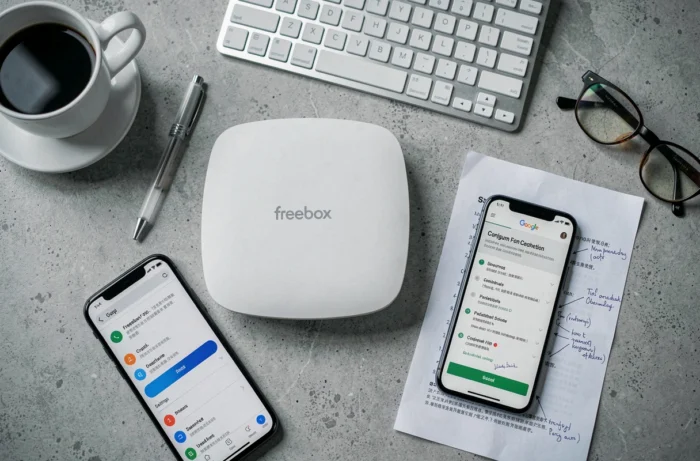
- Follow the on-screen instructions to link your Google account to the player, which will activate the Voice Assistant and access to the Play Store
If the player does not appear in the list of detected devices, restart it and ensure that your Freebox Server is providing a stable internet connection.
Reorganization of Free TV Channels and Voice Commands
On August 25, 2026, Free carried out a reorganization of nearly 700 channels across all its Freeboxes, with a new numbering system by thematic blocks (cinema and series, sports, youth, etc.). This change was automatically deployed overnight from August 24 to 25.
This reorganization has a direct consequence on the use of Google Assistant. Voice commands like “set channel 47” no longer point to the same program as before. Guides published before this date that indicated specific channel numbers have become partially obsolete.
Prefer commands by channel name rather than by number. Saying “Ok Google, set France 2” remains reliable regardless of the numbering, while “set channel 2” depends on a ranking that may change again.
Voice Settings on the Freebox Pop Remote
The Freebox Pop remote includes a microphone accessible via a dedicated button. This button directly activates Google Assistant on the player, without going through the smartphone.
Activate and Test the Microphone
During the initial setup of the player, a screen prompts you to activate the Voice Assistant. If you skipped this step, you can find it in the Android TV settings, under the “Google Assistant” section.
To test proper functionality, hold down the microphone button and say a simple command like “what’s the weather.” If the player displays a response, the link between the Google account and the player is correct.
Known Limitations of Voice Recognition
Field feedback varies on the reliability of voice recognition depending on the sound environment. In a quiet room, commands go through without difficulty. With a television at high volume or in an open space with ambient noise, recognition errors increase significantly.
Here are a few points to check if voice commands are not working:
- The microphone on the remote may be obstructed, or the remote needs to be re-paired via Bluetooth in the settings
- The Assistant’s language must be set to “French (France)” in the player’s voice settings
- A slow or unstable internet connection can cause significant response delays, as voice processing occurs on Google’s servers
Google Play Store on Freebox Pop: Apps and Updates
The player provides access to the Google Play Store in its Android TV version, which offers a reduced catalog compared to the smartphone version. Only applications optimized for display on television are included.
Streaming applications (Netflix, Disney+, Prime Video, YouTube) are generally pre-installed or available in just a few clicks. For applications missing from the TV Play Store, manual installation via APK file using a USB key is still possible, but it requires enabling the “unknown sources” option in the security settings of Android TV.
System and application updates occur automatically when the player is in standby mode and connected to the internet. Regularly check in the system settings that the version of Android TV is up to date, as some Assistant features depend directly on these updates.
The Freebox Pop remains a classic Android TV player in its Google operation, but the ongoing changes in the ecosystem (transition to Gemini, reorganization of channels) require attention to developments on both the Free and Google sides in the coming months.